Read Mails
The Read Mails node searches and reads emails from a connected Gmail account using advanced filters. Use it when your workflow needs to retrieve specific messages for processing, notifications, or downstream automation.

Configuring the node
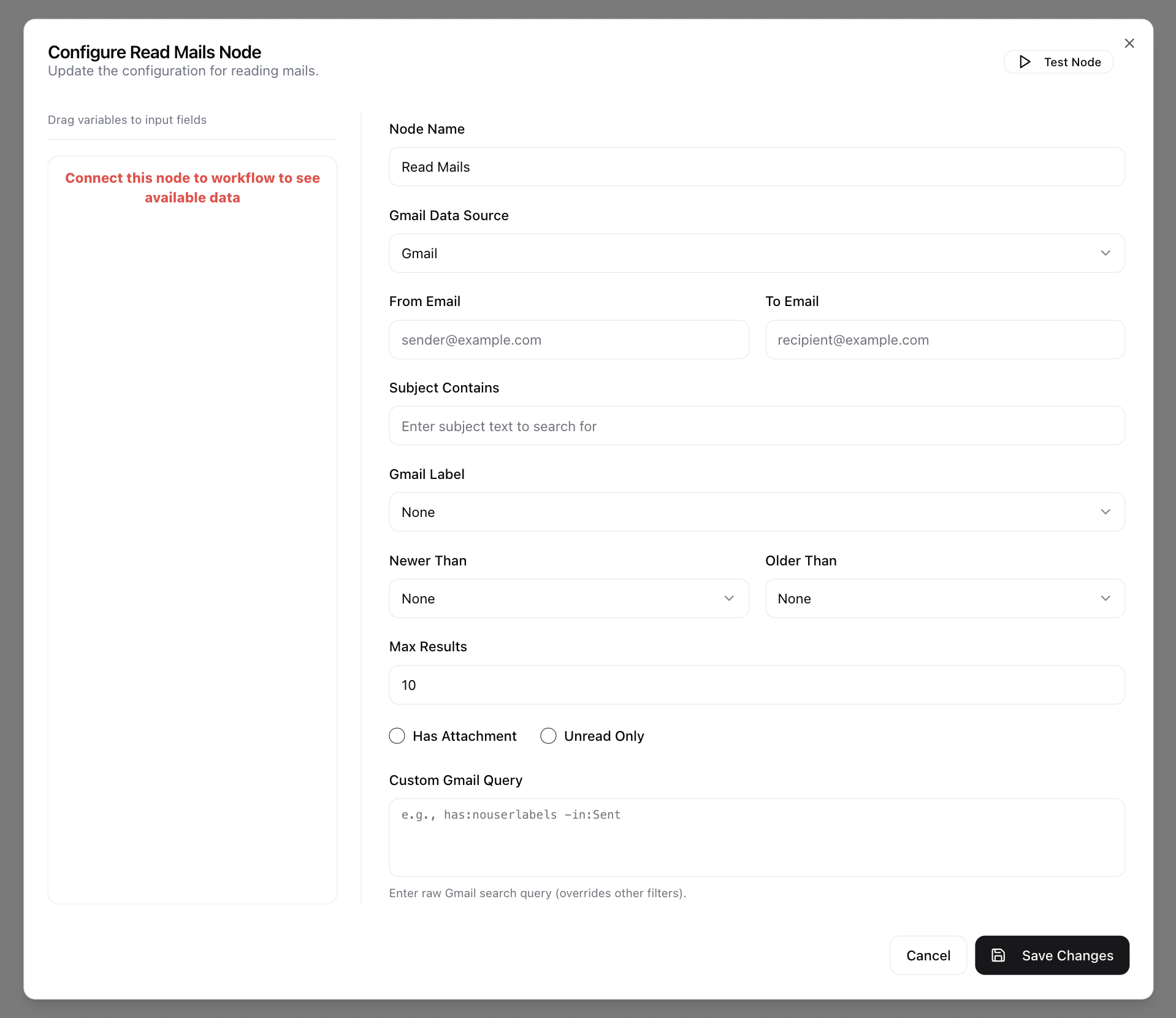
- Click in the node header.
- The Configure Read Mails Node dialog will open.
- Enter the Node Name.
- Select a Gmail Data Source from the drop-down menu.
- Specify From Email to return only messages sent from the given email address.
- Specify To Email to return only messages addressed to the specified recipient.
- Enter Subject Contains to return only messages whose subject includes the specified text.
- Select a Gmail Label to limit the search to a particular label (e.g., INBOX, SENT, DRAFT, SPAM, TRASH).
- Set Newer Than to return only messages that are more recent than the selected time window (e.g., None, 1 hour, 1 day, 2 days, 1 week).
- Set Older Than to return only messages that are older than the selected time window (e.g., None, 1 hour, 1 day, 2 days, 1 week).
- Set Max Results to cap the number of messages returned.
- Toggle Has Attachment on to return only messages that include at least one attachment.
- Toggle Unread only on to return only messages that are currently marked as unread.
- Optionally, enter a Custom Gmail Query (e.g.,
has:nouserlabels -in:Sent). This query overrides the filters set above.