Conversations
In The Dashboard Tab
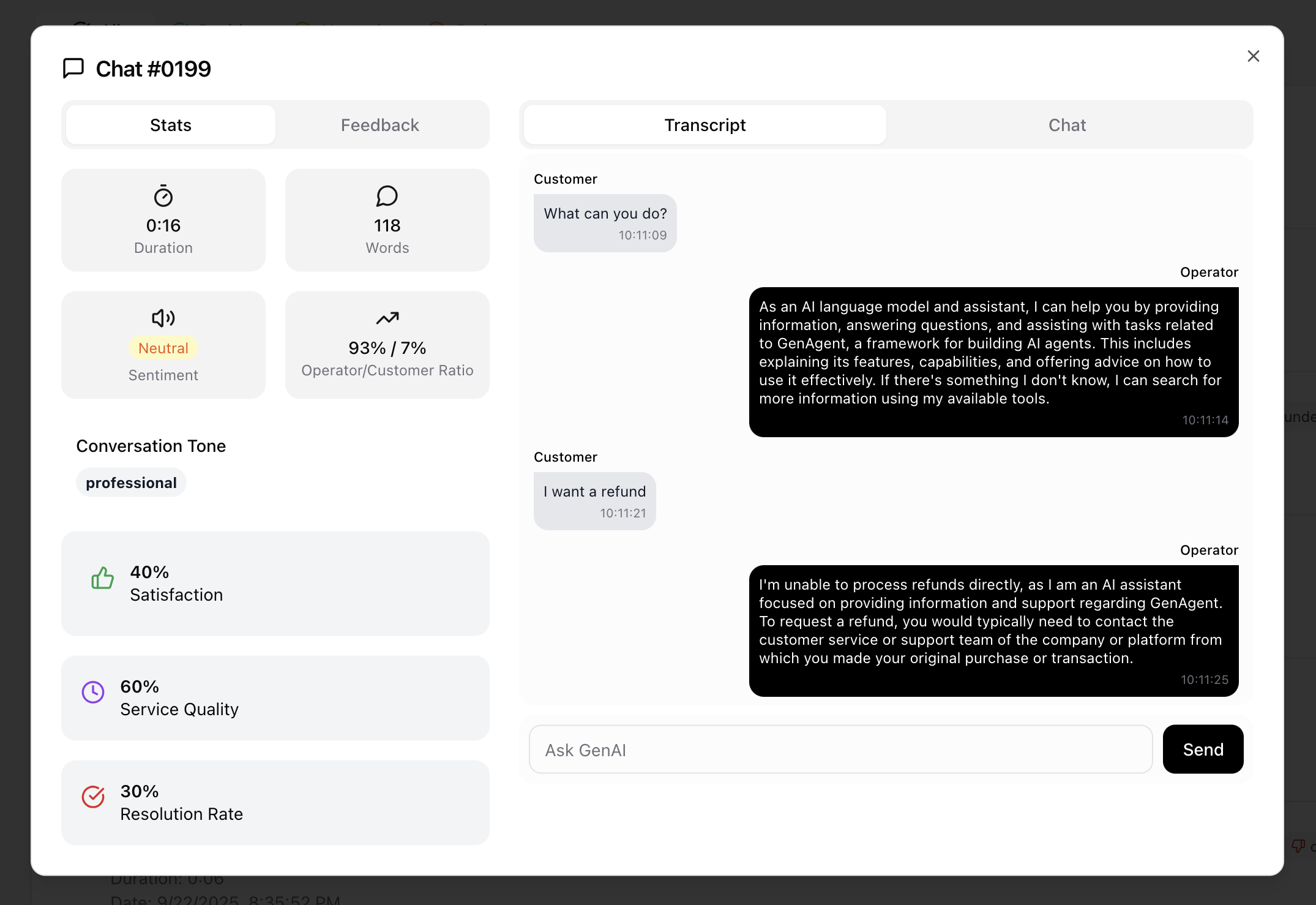
The Dashboard highlights both live and recent customer interactions. The Active Conversations section shows real-time conversations that require attention. These correspond to conversations listed in the Conversations tab when filtered by status=in_progress&status=takeover. On the left, the total number of active conversations is displayed along with a breakdown by sentiment into Bad, Neutral, and Good. Users can filter these by sentiment or by category (Product Inquiry, Technical Support, Billing Questions, or Other).
The Recent Transcripts section lists the most recent customer conversations, including detailed transcripts enriched with sentiment analysis and supporting analytics. This view helps teams monitor the latest interactions, identify emerging issues, and evaluate how conversations are being handled in real time.
In The Conversations Tab
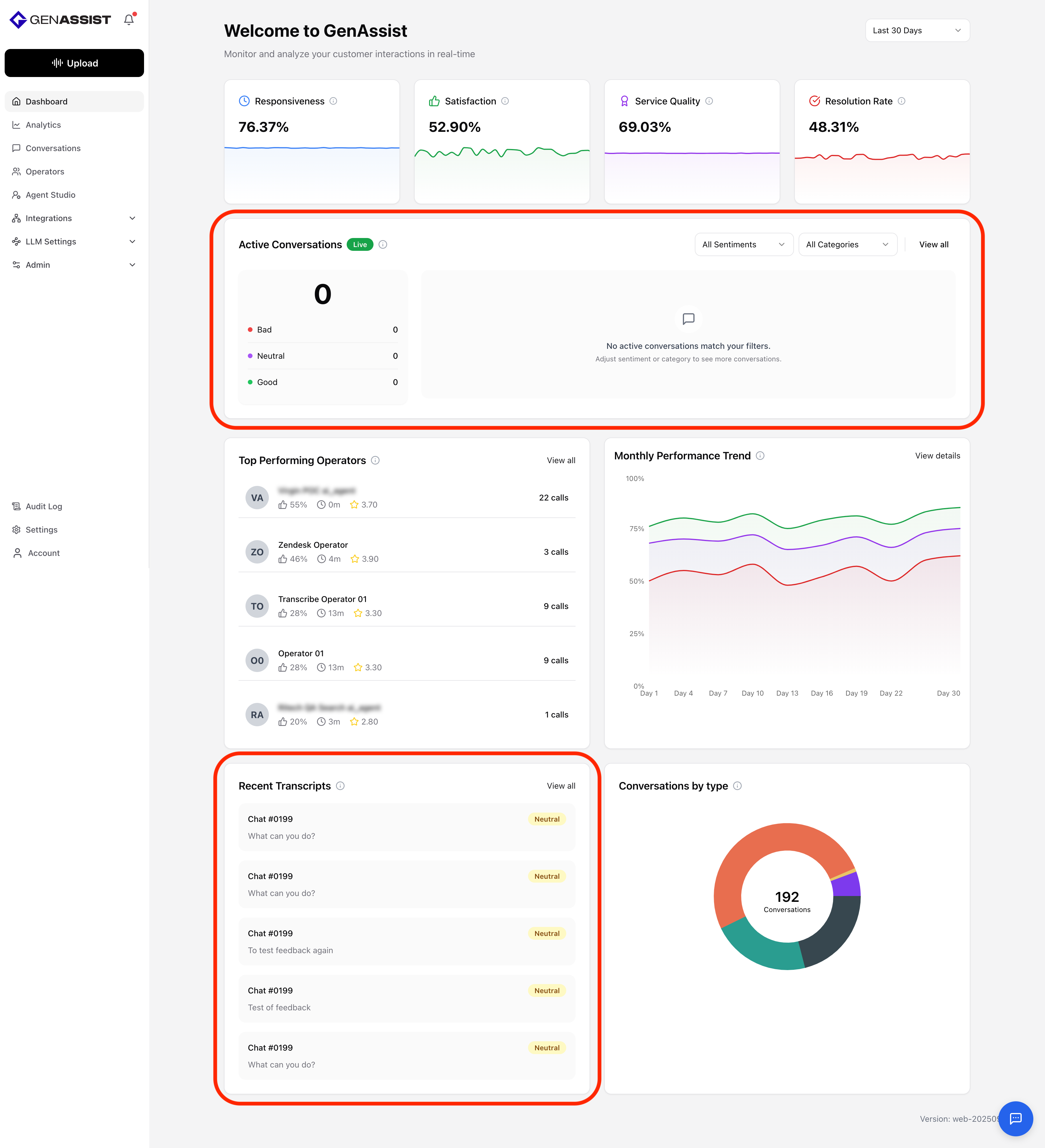
The Conversations tab provides the complete list of customer conversations. There are two types of conversations: calls and chats. Users can click into any conversation to open a dialog, showing additional details about the interaction.
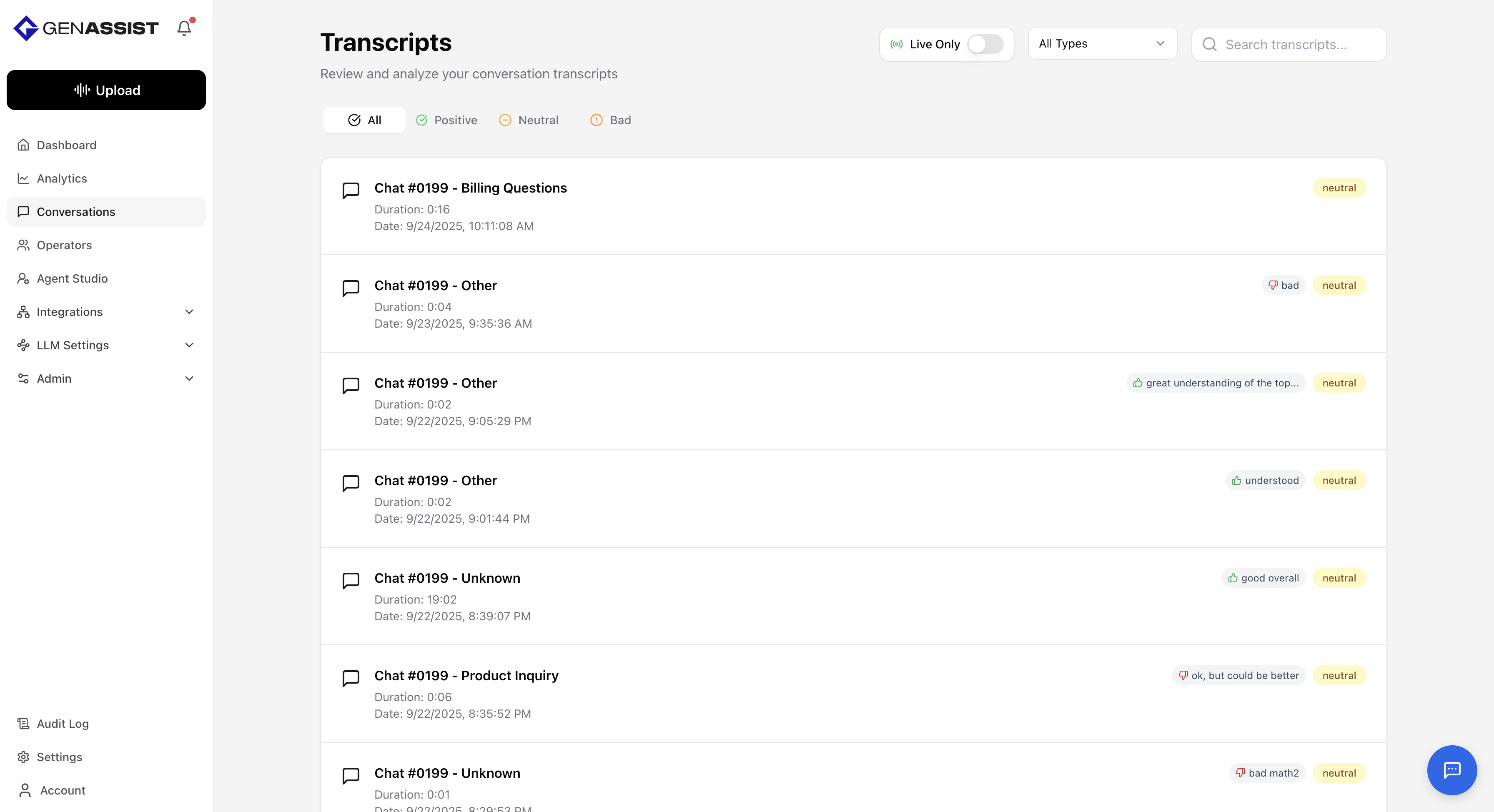
For a call, the left section of the dialog displays key metrics derived from the call analysis. These include the duration of the call, the total number of words spoken, the overall sentiment, the operator-to-customer talk ratio, and the conversation tone. The pane also includes an audio player to play back the call recording, along with key performance indicators (satisfaction, service quality, and resolution rate). The right section of the dialog switches between two views. The Transcript view displays the call as a series of conversational turns, each showing the speaker, timestamp, and text. The Chat view provides a chat interface where users can ask questions about the call, submit queries to an AI, and receive responses in real time.
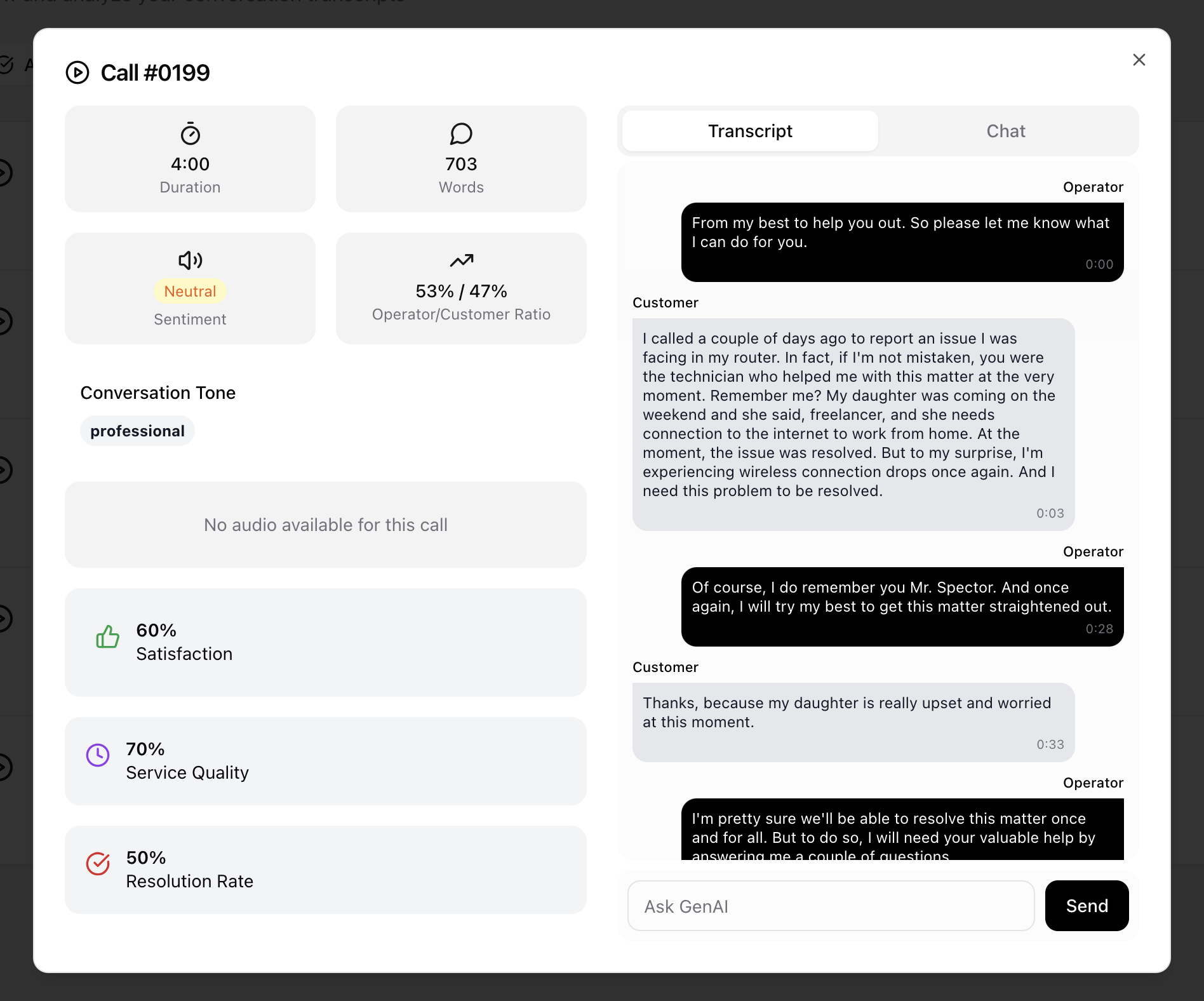
For a chat, the left section of the dialog switches between two views. The Stats view mirrors the same metrics as calls, showing duration, word count, sentiment, operator-to-customer ratio, and key performance indicators. The Feedback view allows users to rate the quality of the chat analysis with a thumbs-up or thumbs-down and add written feedback. The right section of the dialog also switches between two views. The Transcript view displays the full conversation as a sequence of messages exchanged between the operator and the customer. The Chat view works the same as in calls, allowing users to ask questions about the chat, submit queries to an AI, and receive contextual answers.